The VNC password is a security layer independent of your operating system's internal credentials (such as the root or Administrator user). This password protects direct access to the "physical screen" or console of your virtual server before the system loads.
1. Log in to your control panel using the credentials sent to your email.

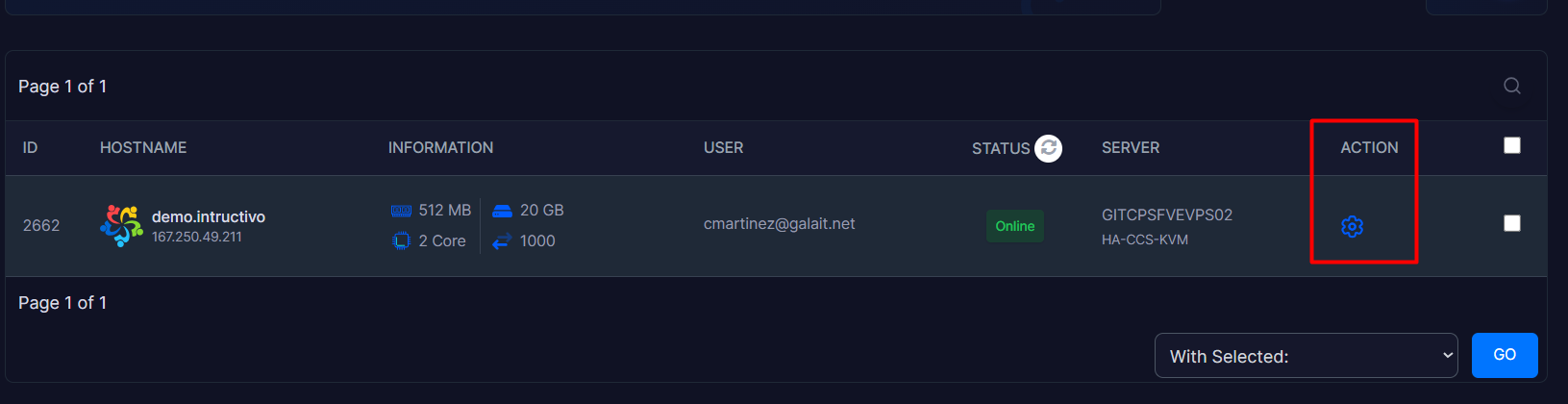
2. Inside your panel, locate the Action module and click on the gear icon to enter the administration panel.
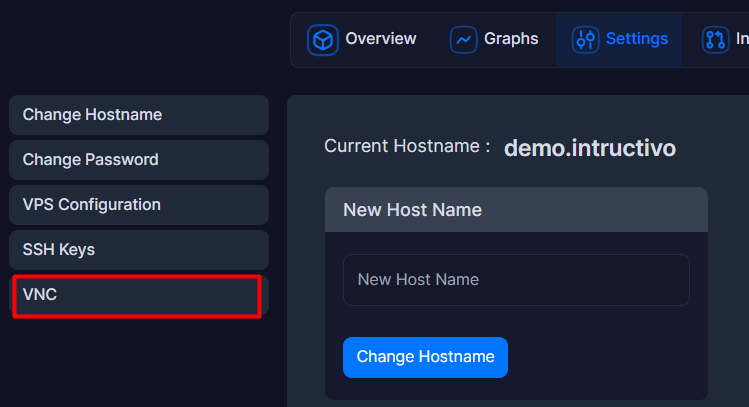
3. Go to the Settings option and click on the last module displayed, which is VNC.
4. Head over to the "VNC Password" box and enter your new password in the "New Password:" field.
5. Retype the exact same password in the "Retype New Password:" field.
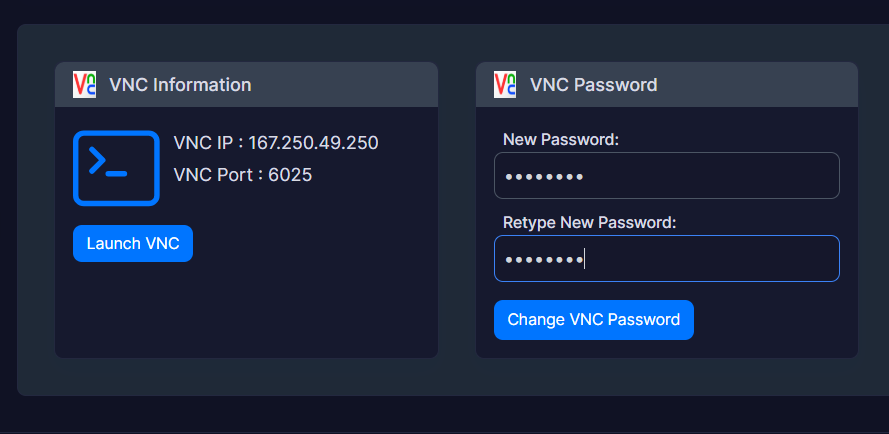
6. Click the blue "Change VNC Password" button to save your console's new security configuration.
Security Notes:
• If you change the VNC password while trying to resolve a system freeze or lockout, it is advised to reboot the VPS from the main panel to ensure that the new remote access key applies correctly.
• The VNC password is typically limited by the virtualization system to a maximum of 8 alphanumeric characters. Attempting to set a longer password may cause the system to automatically truncate it or trigger an authentication error when trying to open the console. After changing it, it is highly recommended to restart the VPS from the panel so the new credential syncs correctly on the node.