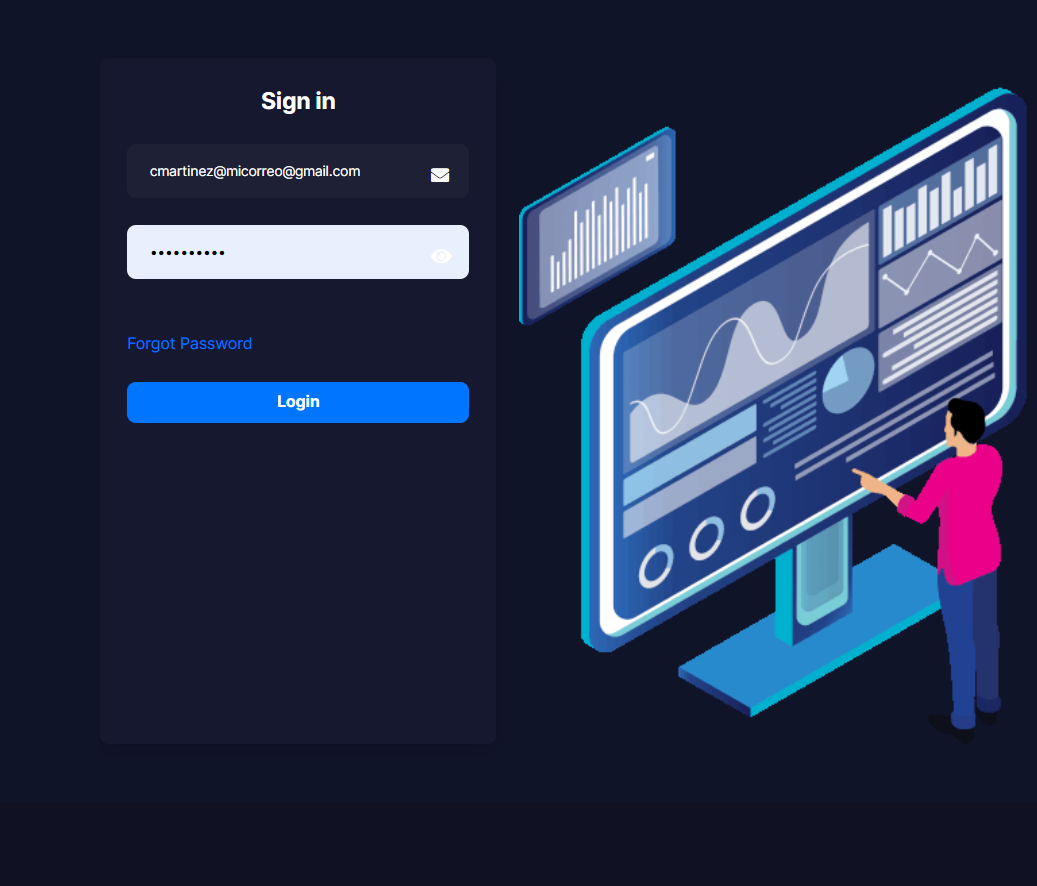
1. Ingresa a tu panel de control con las credenciales enviado a tu correo.
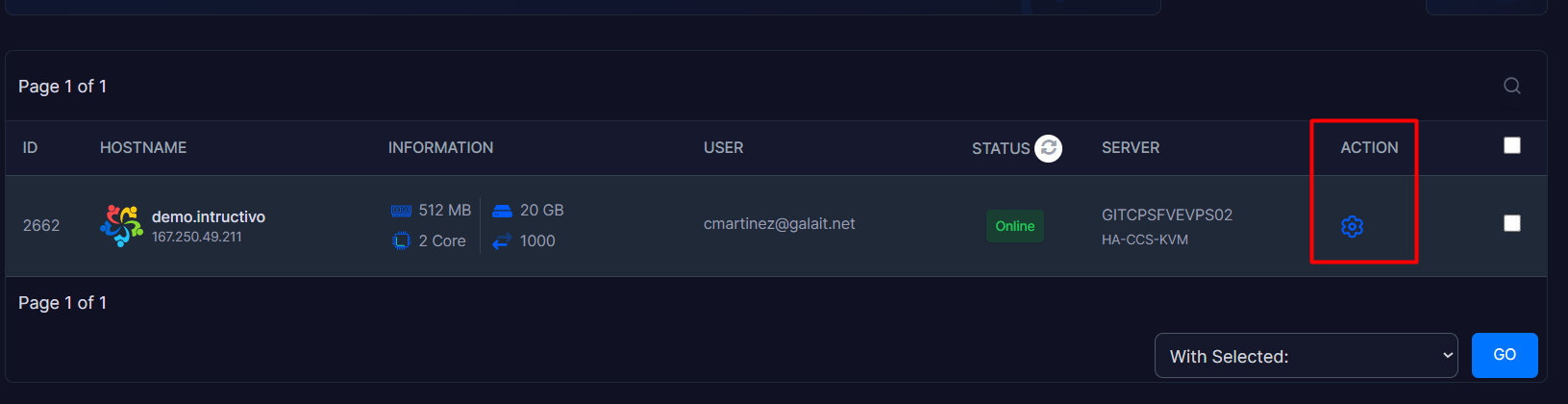
2. Dentro de tu panel ubica el modulo de Acción ( Action ) y haz click en el Símbolo de engranaje para ingresar al panel de administración.
3. Entra en la opcion de Configuracion ( Setting ) en el segundo modulo que se muestra en la lista que se despliega procede a selecciona la opcion Change Password.
4. Escriba su nueva contraseña en el campo Nueva contraseña New Password. El indicador inferior le mostrará el nivel de seguridad de la misma.
5. Vuelva a introducir la clave en el campo Escribe Nuevamente la contraseña Retype New Password para verificar que los datos coincidan exactamente.
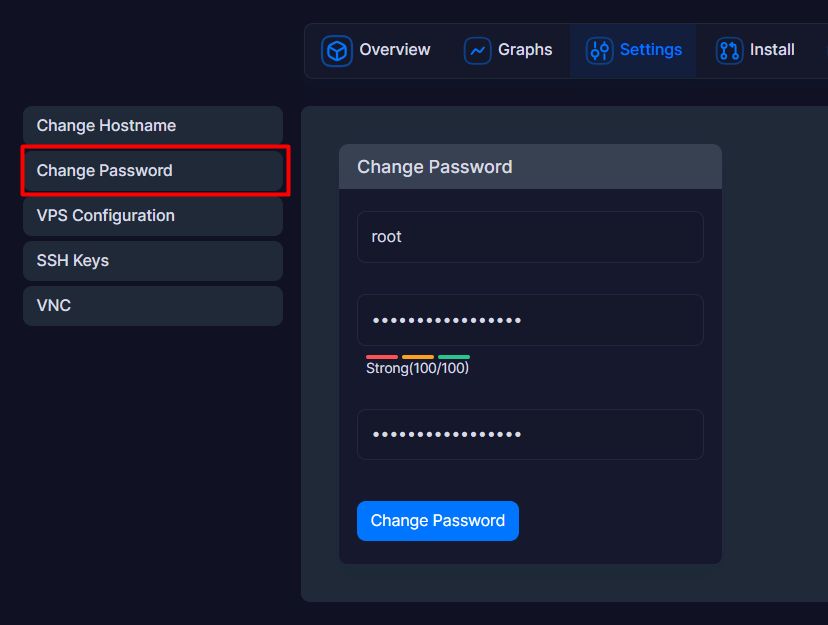
6. Haga clic en el botón azul Change Password para aplicar la nueva configuración inmediatamente.
Notas:
Contraseñas seguras: Para proteger su infraestructura de accesos no autorizados, asegúrese de que el indicador de seguridad marque un estado óptimo (Strong). Se recomienda combinar letras mayúsculas, minúsculas, números y caracteres especiales.
Registro de credenciales: Almacene su nueva contraseña en un gestor de claves seguro inmediatamente después de realizar el cambio para evitar la pérdida de acceso a su servidor.