1. Log in to your WHM administration panel using your root or reseller credentials.
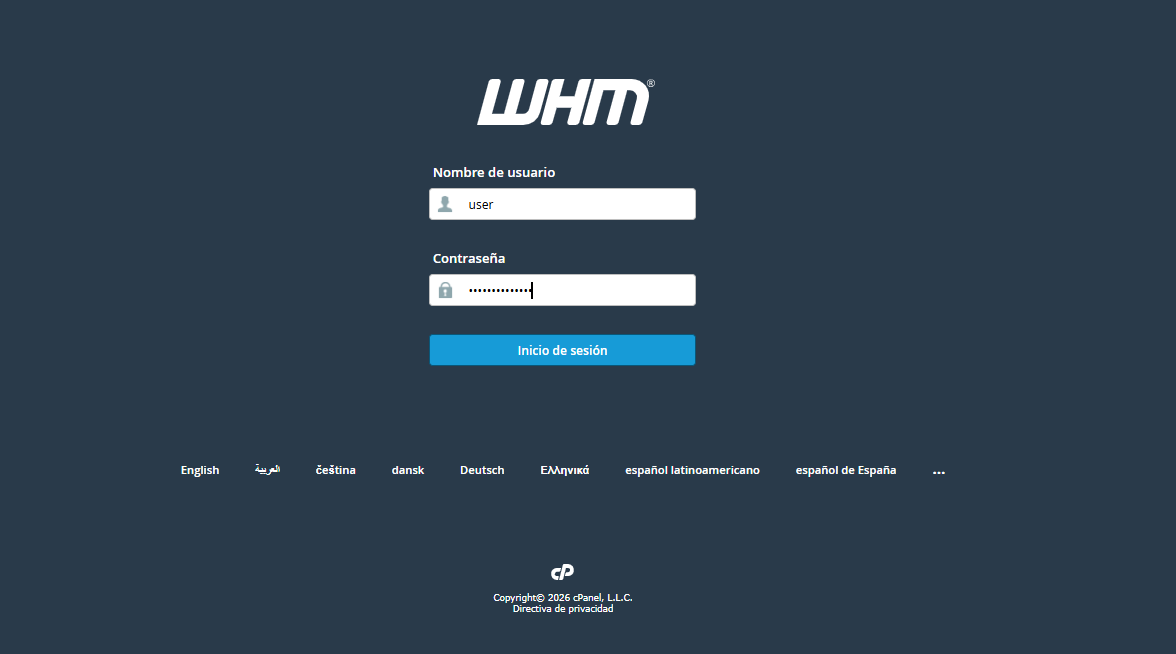
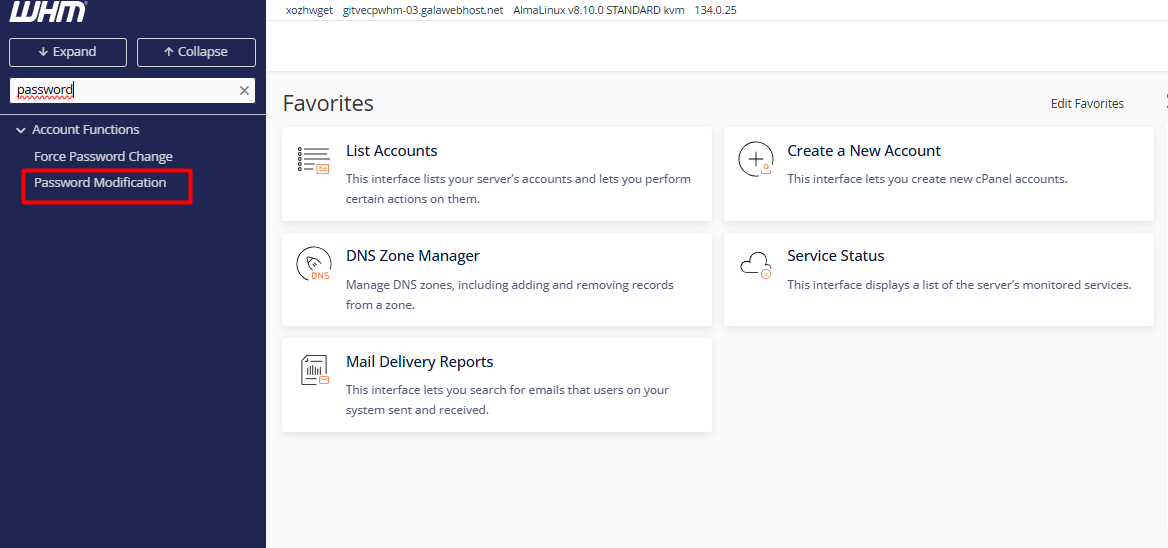
2. Use the sidebar search bar or navigate to Account Functions > Modify a Password.
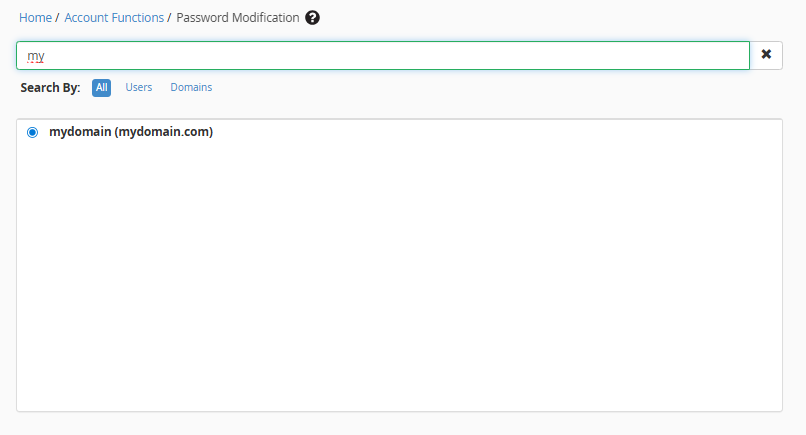
3. Locate the target account in the list by filtering by username or the linked primary domain.
4. Enter the new password in the text field. (Note: We strongly recommend using the Password Generator to ensure the key meets the complexity standards required by the server).
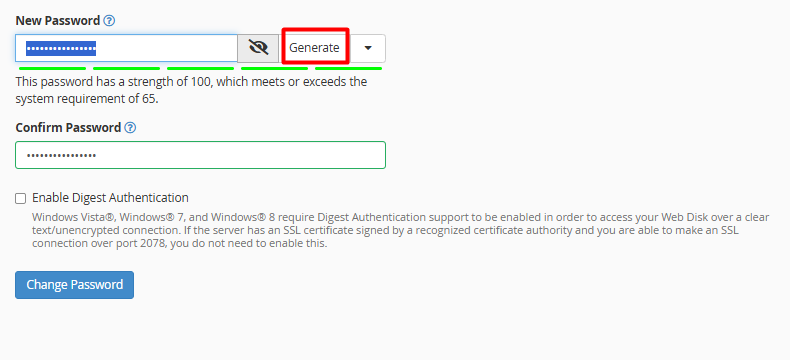
5. Finalize the process by clicking Change Password. The system will apply the new configuration instantly.
• WHMCS Synchronization: If your infrastructure is integrated with a billing system, it is imperative to update the password within the product profile in WHMCS. This prevents API call discrepancies and ensures the continuity of automated functions.
• Incident Management: This procedure allows the administrator to regain operational control of an account immediately, serving as a key tool in response to potential security breaches or loss of access by the end user.