The Site Health tool is essential for maintaining the integrity, security, and performance of your platform. This feature performs an automatic technical diagnostic to identify potential conflicts before they impact your visitors' experience.
1. Log in to your WordPress control panel.
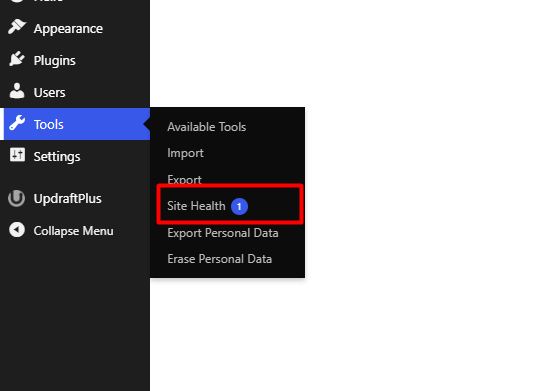
2. In the sidebar menu, navigate to Tools and select the Site Health option.
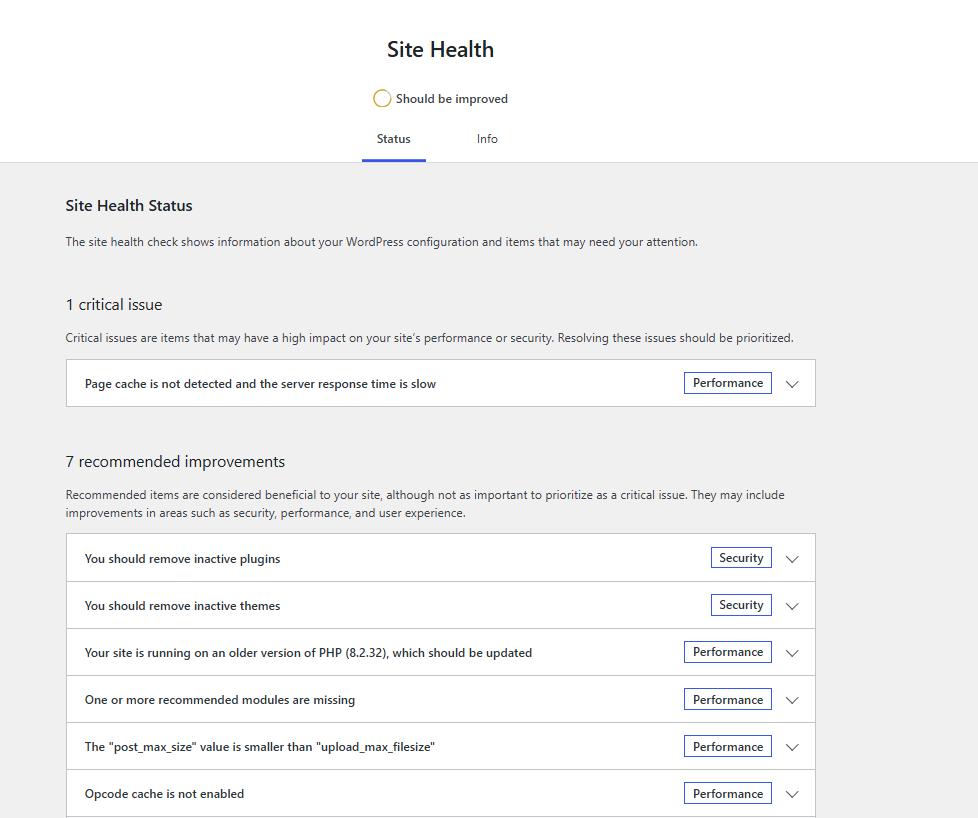
3. Upon entry, the system will initiate an automatic scan. You will see an executive summary of your site's current status via color-coded indicators that reflect the priority of each point. Once completed, two tabs will be displayed, each with its own group of evaluated characteristics:
3.1. "Status" tab: Identifies warnings and critical errors, such as outdated PHP versions, incompatible plugins, or vulnerable security settings.
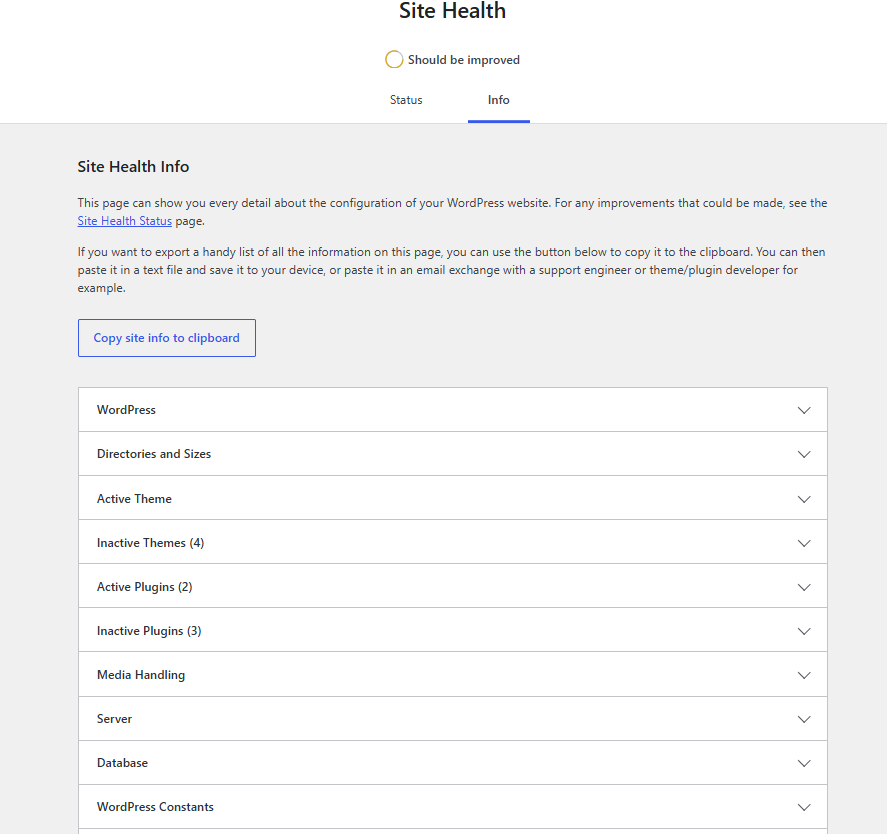
3.2. "Info" tab: Provides an exhaustive breakdown of your technical environment (server configuration, database, memory limits, and software parameters), which is vital for high-level diagnostics.
Notes:
• We recommend performing this audit on a monthly basis. Proactive detection of warnings allows you to prevent service outages and optimize loading speeds.
• If the system reports "critical errors," it is imperative to resolve them before executing any design updates or installing new features.
• In case you encounter complex technical settings (such as memory limits or timeouts), you can export the system information from the Info tab and send it to your technical support team for an expedited resolution.