The profile section allows you to centralize your work environment configuration, ranging from aesthetic preferences to account security management.
- Preference and Environment Configuration:
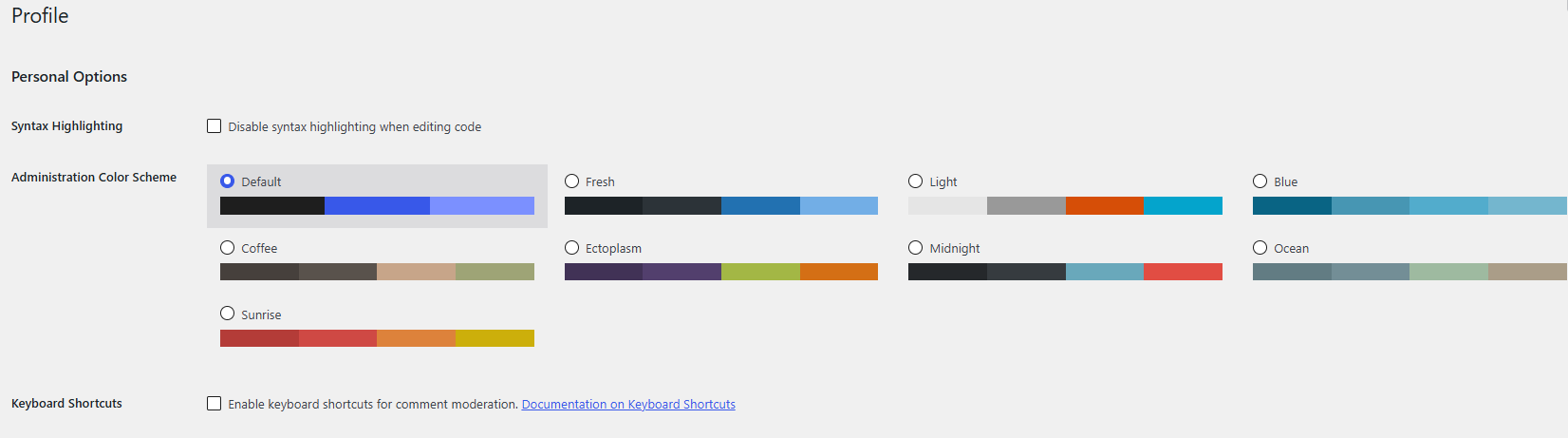
1.1. Color Scheme: You can personalize the administrative interface by selecting the "Administration Color Scheme" that best adapts to your visual preferences.
1.2. Editing Tools: Configure the visibility of the toolbar when viewing the site and activate keyboard shortcuts for more dynamic management in comment moderation.
2. Personal and Contact Information:
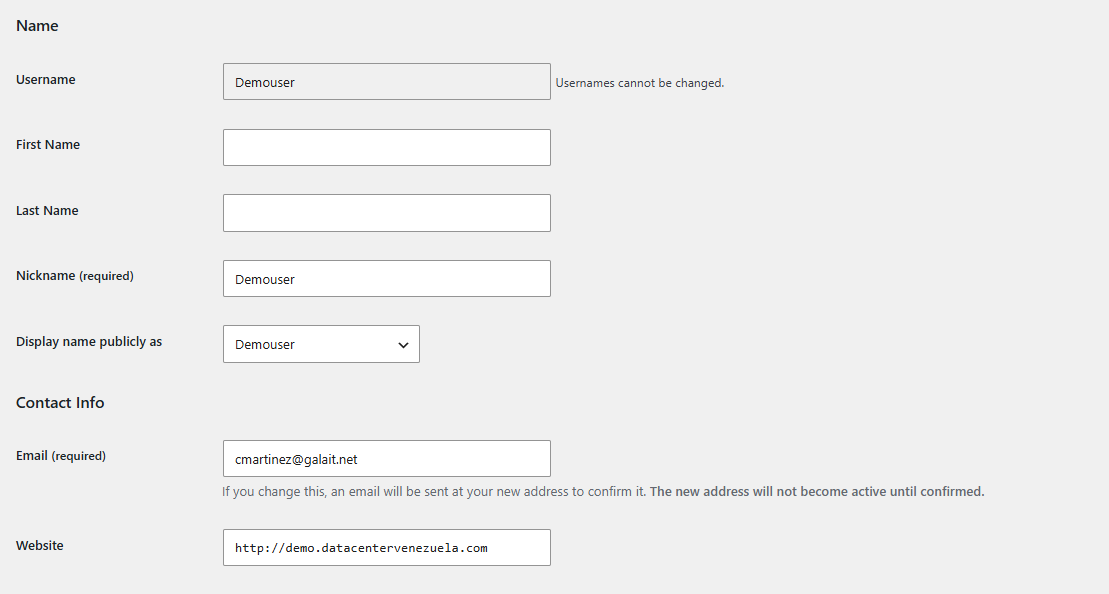
2.1. User Details: In this section, you can define your first name, last name, and the alias that will appear on your posts.
2.2. Contact Data: Keep your email address and personal website updated. Please note that any change to the email address requires prior confirmation to be activated.
2.3. Visibility Management: Use the "Display name publicly" option to control how your identity is presented to your site's visitors.
3. Account and Security Management
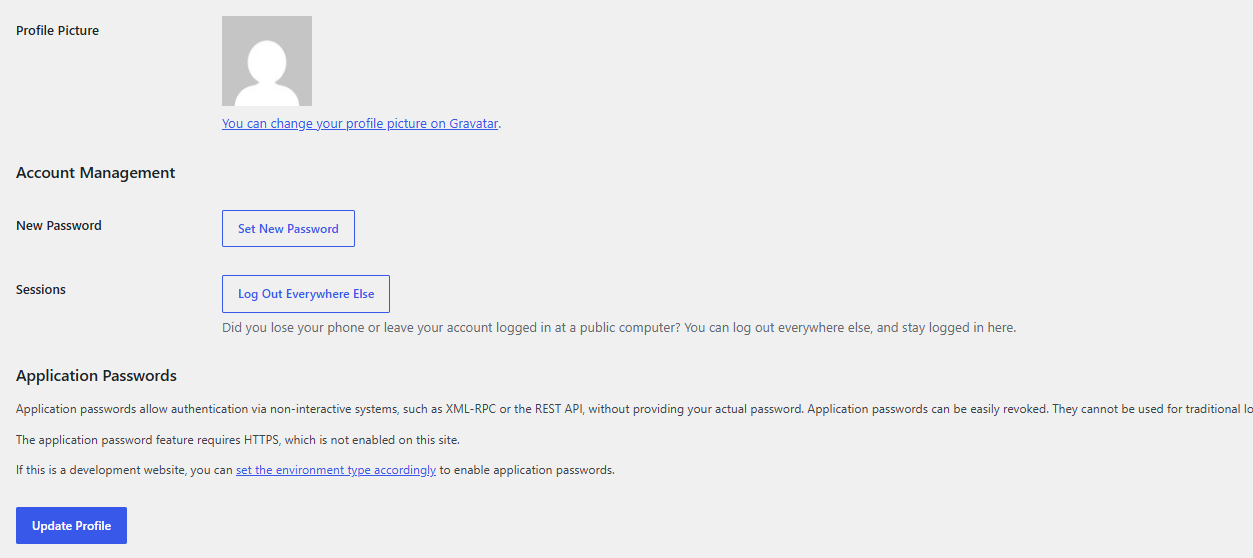
3.1. Access Security: You can set a new access password or close active sessions on other devices, which is a recommended measure if you have used a public computer.
3.2. Visual Identity: The management of your profile image is carried out through the Gravatar platform, ensuring that your avatar is synchronized across various services.
3.3. Application Passwords: For systems that require authentication via REST API or XML-RPC, you can manage application passwords that allow for secure and easily revocable identification.
Notes:
• To apply any changes made in these sections, it is imperative to click the "Update Profile" button located at the bottom of the page; otherwise, the modifications will not be registered by the system.