La gestión del enrutamiento de correo es fundamental para determinar si sus mensajes serán procesados localmente por nuestro servidor o derivados a un servicio externo (como Google Workspace o Microsoft 365). Para ajustar esta configuración, siga estos pasos:
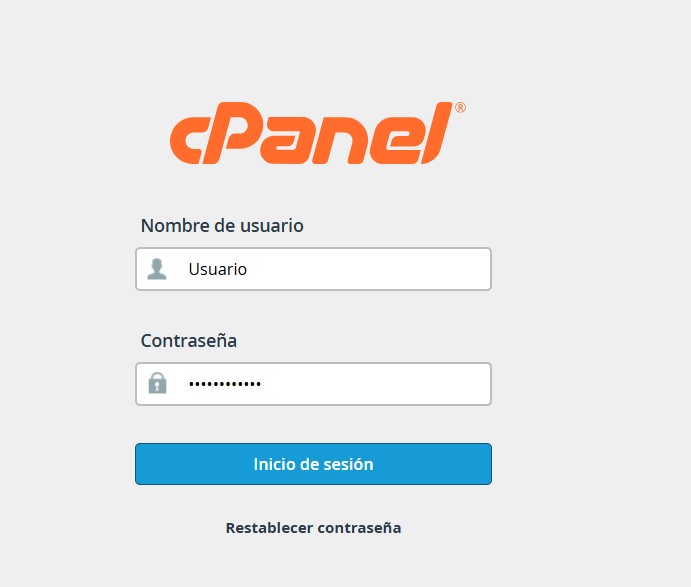
1. Inicie sesión en su cPanel y localice la sección Correo electrónico.
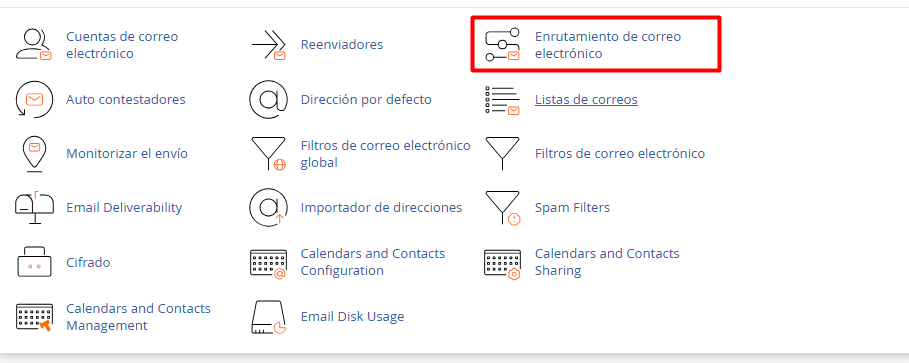
2. Seleccione la herramienta Enrutamiento de correo electrónico
3. Elija el dominio específico que desea configurar desde el menú desplegable. (En caso de tener un solo dominio lo tomara automatica )
4. Seleccione la opción de enrutamiento adecuada según su infraestructura:
4.1. Intercambiador de correo local: Recomendado si gestiona sus cuentas de correo directamente en nuestros servidores.
4.2. Intercambiador de correo remoto: Seleccione esta opción si utiliza un proveedor de correo externo. Esto instruye a nuestro servidor para que no intente la entrega local.
4.3. Copia de seguridad del intercambiador: Configura nuestro servidor como un nodo de respaldo para recibir mensajes en caso de indisponibilidad de su servidor principal.
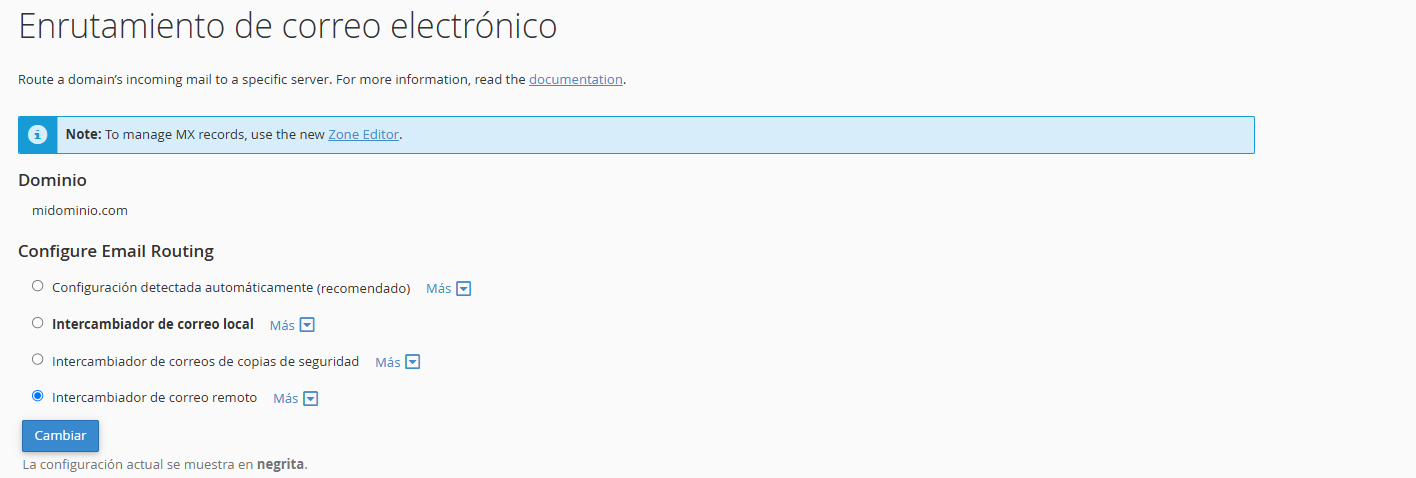
5. Haga clic en el botón Cambiar para aplicar los ajustes.
Notas de seguridad :
• Registros MX: Si ha optado por un intercambiador remoto, recuerde que es imperativo actualizar los registros MX (Mail Exchanger) en el Editor de zonas de su cPanel para alinearlos con las especificaciones de su proveedor de correo externo.
• Sincronización: Una configuración de enrutamiento incorrecta puede interrumpir el flujo de entrada de sus mensajes. Asegúrese de que la configuración elegida sea consistente con la resolución de sus registros DNS.