La implementación de una estrategia de respaldo confiable es fundamental para la seguridad de su plataforma. Siga este protocolo técnico para desplegar UpdraftPlus y gestionar sus copias de seguridad de forma eficiente:
1. Ingrese a su panel de control de WordPress.
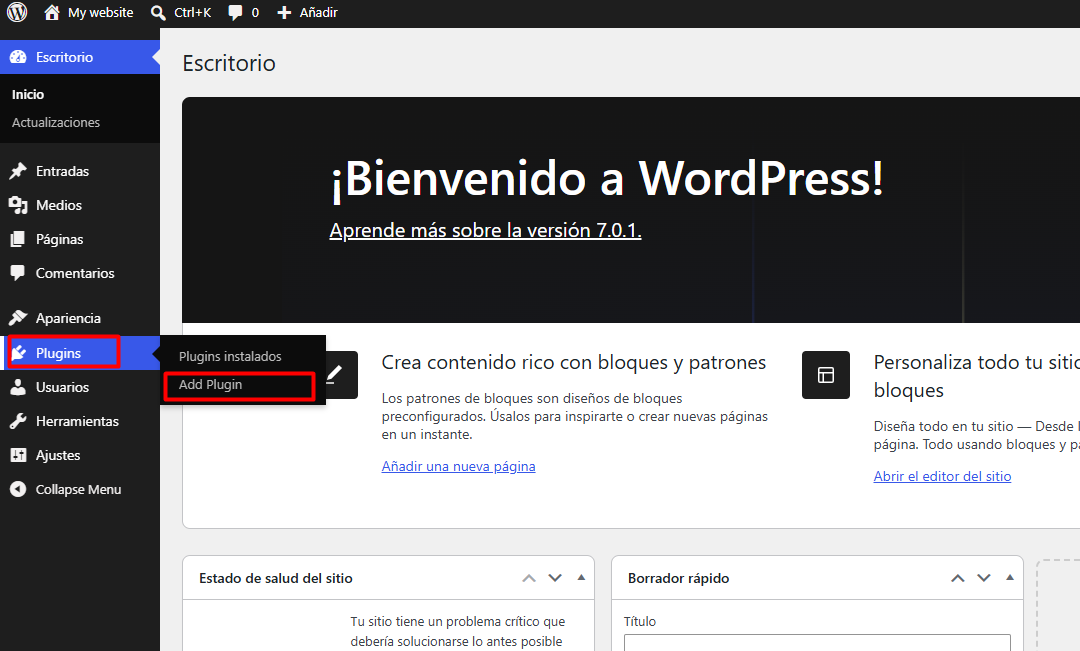
2. Diríjase al menú lateral, seleccione Plugins y haga clic en Añadir nuevo.
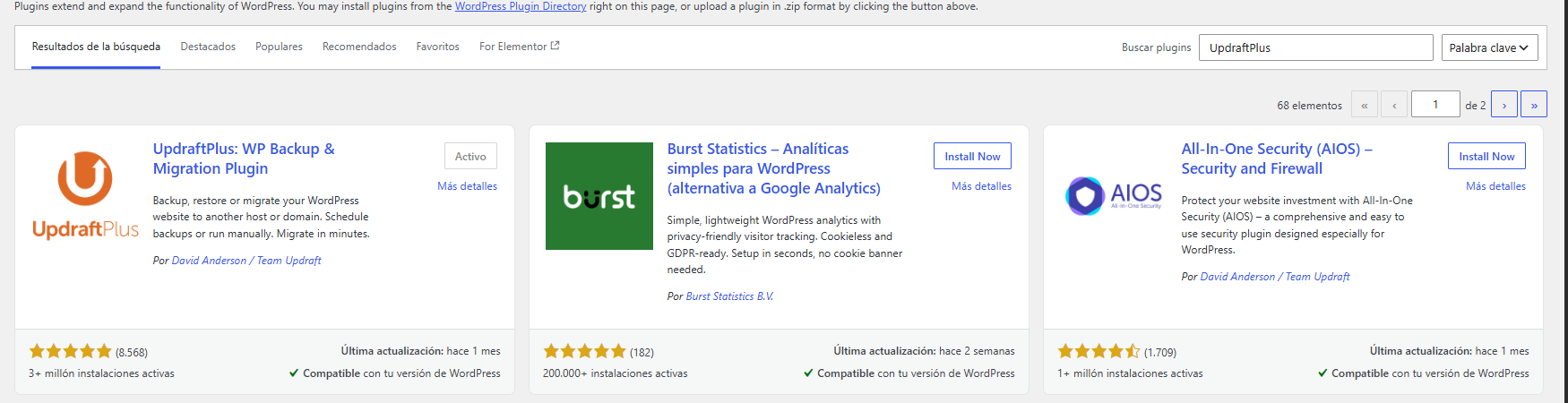
3. En la barra de búsqueda superior, ingrese UpdraftPlus.
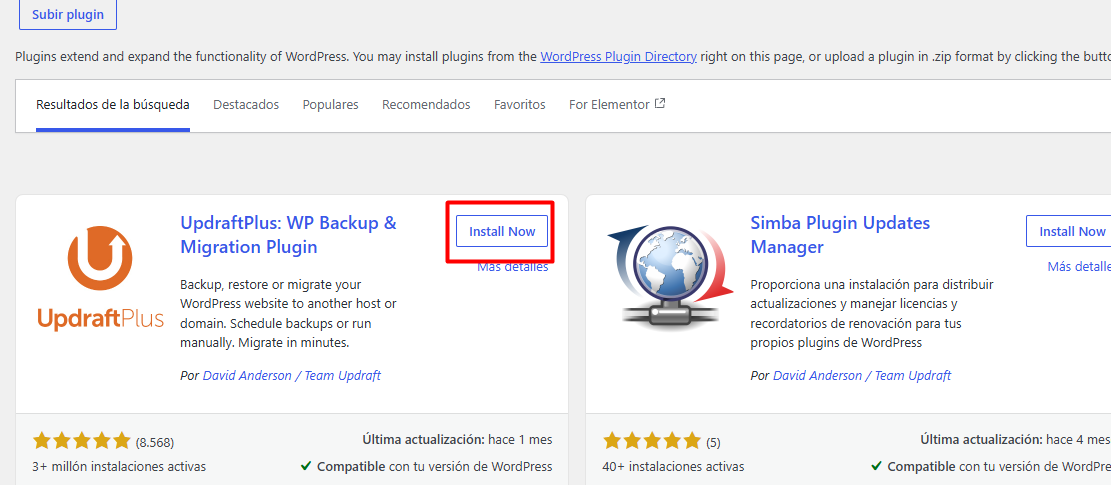
4. Ubique el plugin UpdraftPlu, haga clic en Instalar ahora y, posteriormente, en Activar.
5. Una vez completada la validación previa, proceda con la creación y configuración de su copia de seguridad directamente desde la interfaz del plugin:
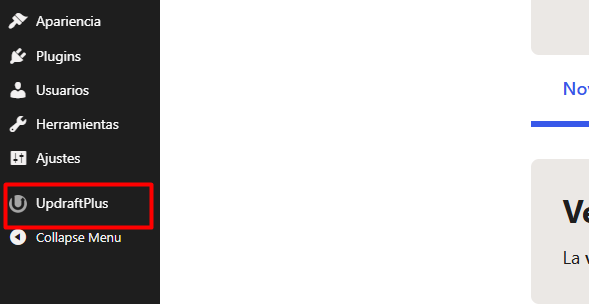
5.1. Ubique UpdraftPlus en la barra lateral de su panel de administración y selecciónelo para ingresar al panel de gestión del plugin.
5.2. Diríjase en primer lugar a la pestaña Ajustes para definir los parámetros operativos de sus respaldos
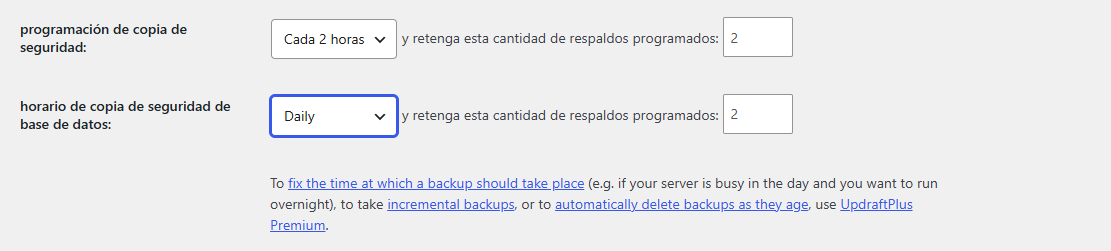
5.3. Programe la periodicidad exacta para la copia de seguridad de los archivos de su sitio web.
5.4. Establezca de forma independiente el horario y la frecuencia para el respaldo de la base de datos.
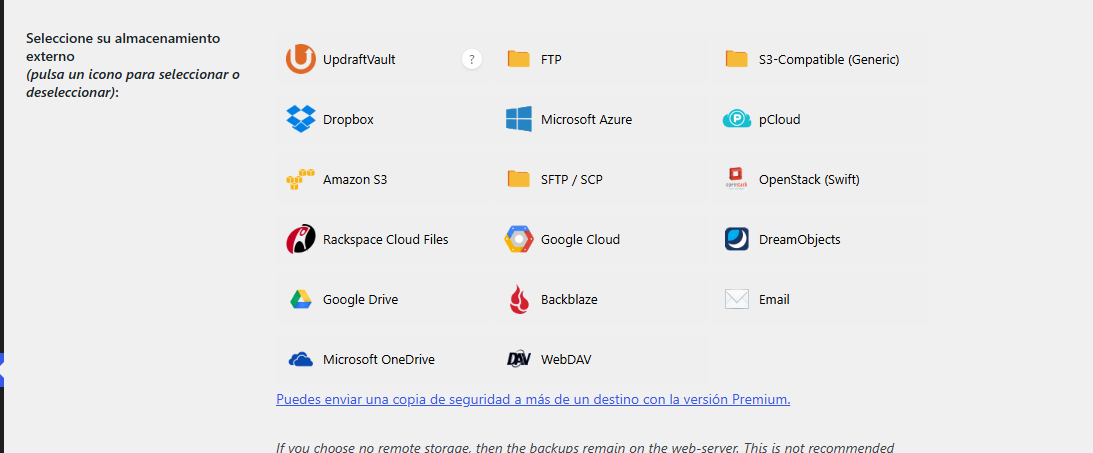
5.5. Seleccione una plataforma externa para el envío automatizado de sus datos.
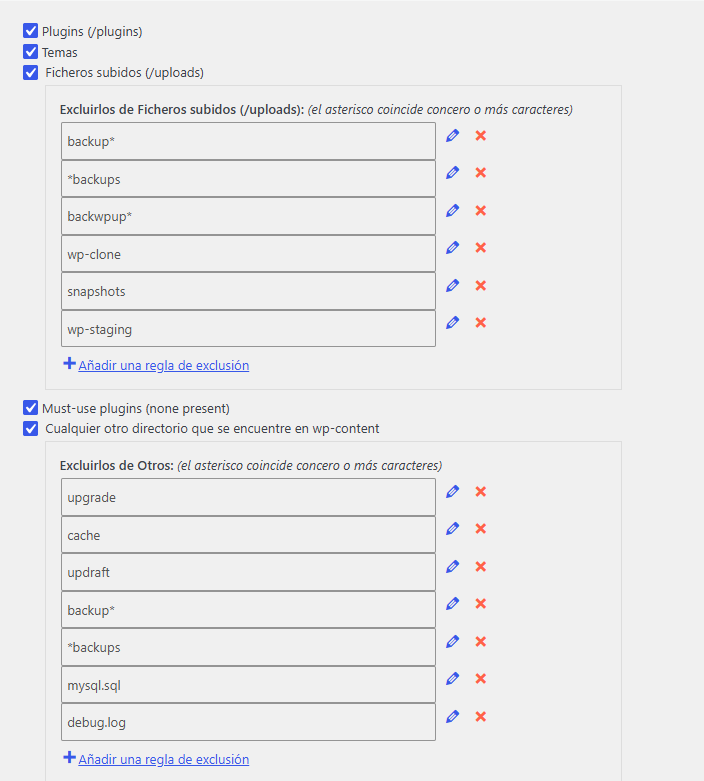
5.6. Seleccione qué elementos formarán parte del respaldo (plugins, temas, cargas de medios y otros directorios esenciales).
5.7. Active la casilla de reporte electrónico para recibir un informe detallado en su email cada vez que un respaldo se complete con éxito.

6. Una vez guardados los ajustes previos, diríjase a la sección principal de la herramienta para iniciar el proceso de captura de datos de forma segura:
6.1. Acceda al apartado Copia de seguridad / Respaldo para dar inicio formal a la generación del backup.
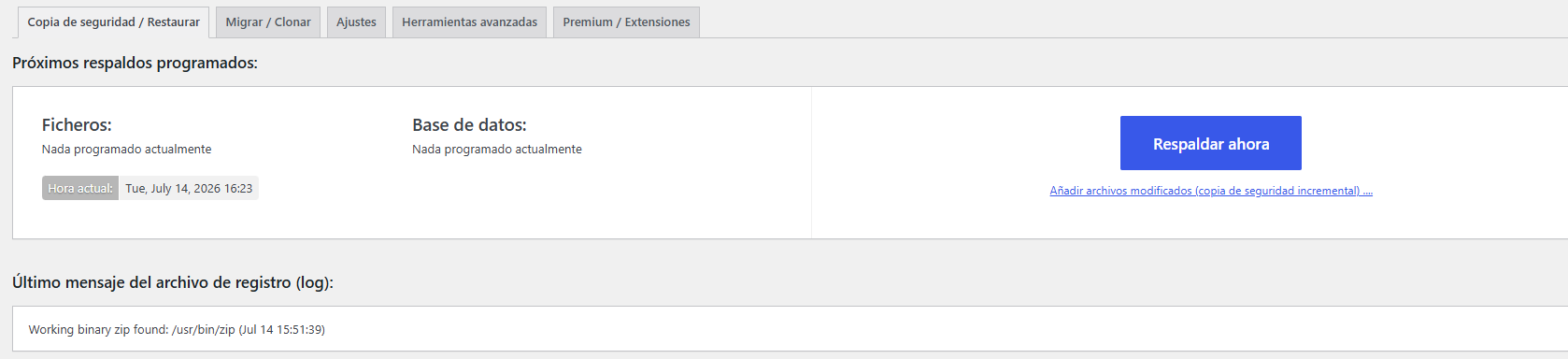
6.2. Asegúrese de marcar la casilla correspondiente para incluir la base de datos completa junto con los archivos de la web.
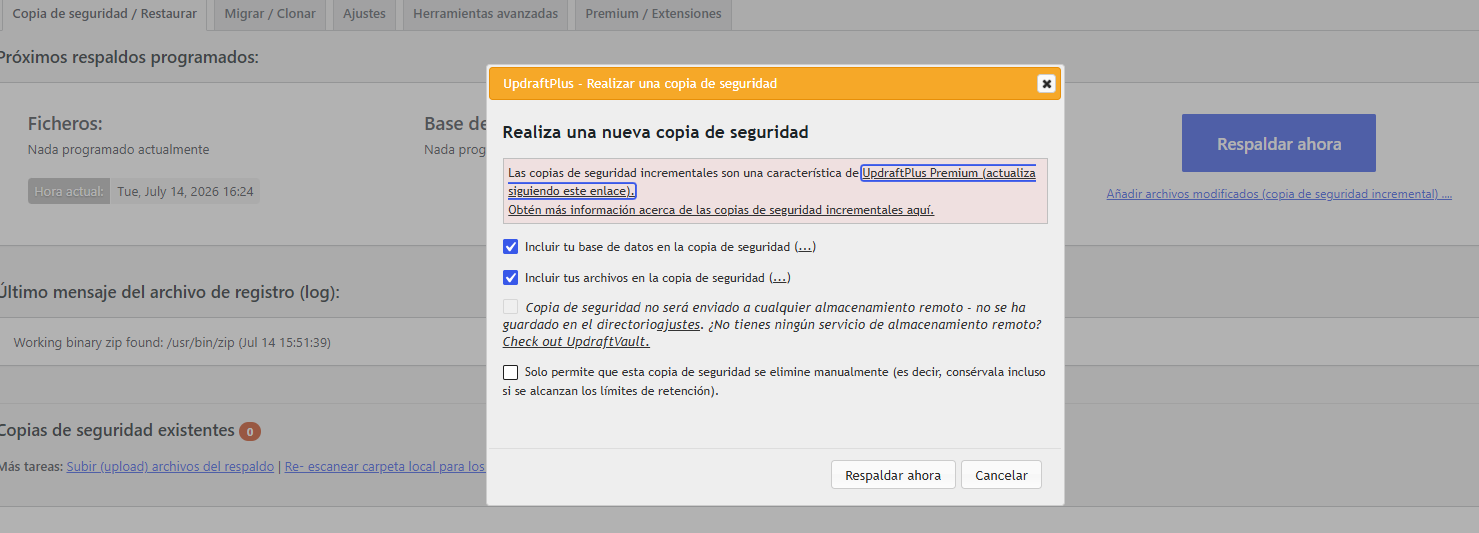
7. Culminado lo anterior puedes proceder a realizar la copia de seguridad haciendo click en el boton Respaldar Ahora
Notas de seguridad :
• Configure la pestaña Ajustes para vincular el plugin con un servicio de almacenamiento externo (como Google Drive, Dropbox o Amazon S3). Esto blinda su información ante fallos críticos del servidor principal.
• Defina "Programas de respaldo" automáticos (diarios o semanales) para asegurar una redundancia constante sin requerir intervención manual constante.
• Verifique siempre en la sección Respaldos existentes que los archivos generados aparezcan correctamente vinculados y listos para cualquier escenario de restauración.
• Se recomienda encarecidamente utilizar almacenamiento externo. Si omite este paso, los respaldos se guardarán en su hosting actual, consumiendo espacio en disco y comprometiendo la seguridad de la información en caso de fallo del servidor.