To create an SSH key from your computer, the fastest and most secure method is to use the command terminal. Depending on your operating system, you should go to the following sections:
• Windows: Open PowerShell or Command Prompt (You can access it by typing it in the search bar).
• Mac / Linux: Open the Terminal application.
1. Once inside the terminal, type the following command (it uses the modern ED25519 algorithm, which is more secure and efficient) and press Enter:
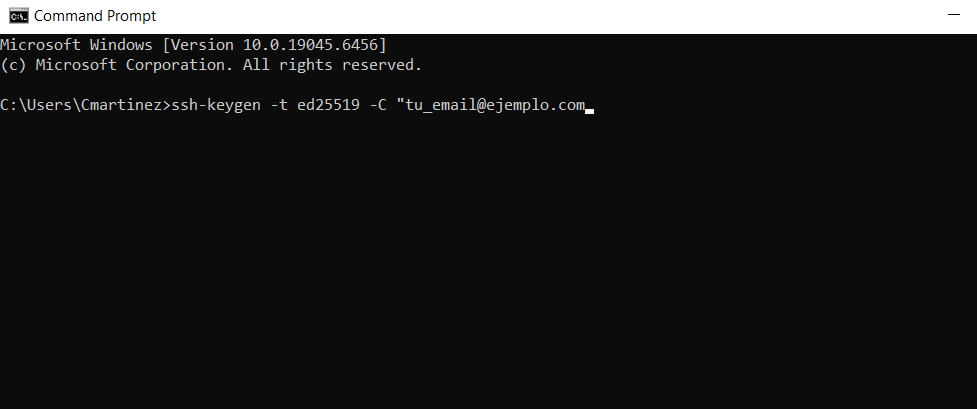
ssh-keygen -t ed25519 -C "your_email@example.com" (Replace the email with your own to easily identify the key).
2. Configure the location and password:
2.1. The terminal will ask you where to save the key. Press Enter to accept the default path (recommended).
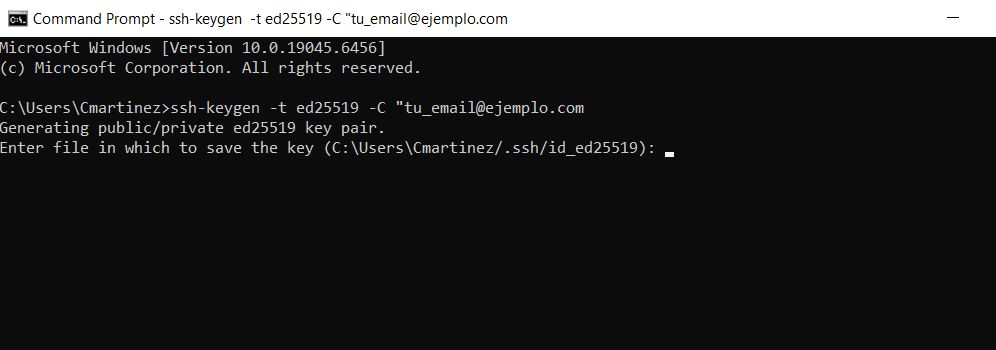
2.2. It will then ask you to enter a password to protect the key.
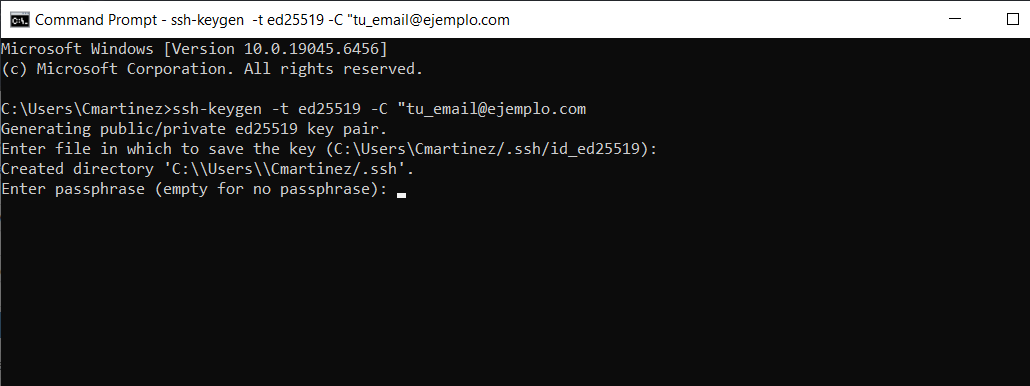
2.3. Enter a secure passphrase and press Enter.
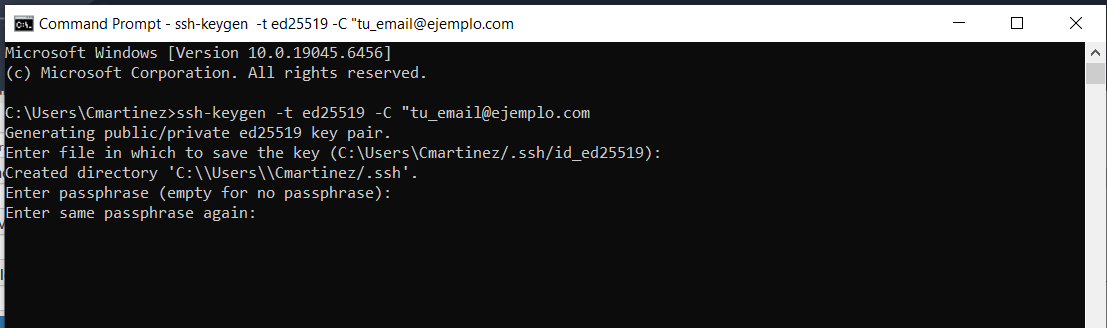
2.4. Confirm the password by typing it again and press Enter. (Note: You will not see characters on the screen while typing for security purposes)
3. Where you can see your created keys
3.1. The command will generate two files in your hidden .ssh folder:
•id_ed25519 (Private key: Never share it with anyone).
•id_ed25519.pub (Public key: This is the one you must copy to servers like GitHub, GitLab, or your own server).
Security Note:
• Always make sure to open the file ending in .pub. Never show or share the file without an extension, as that is your private key