If you need to restore your server to its factory settings or change the distribution for a new project, you can automate this process in just a few minutes without needing technical support. Follow these simple steps:
1. Log in to your control panel using the credentials sent to your email.

2. Inside your panel, locate the Action module and click on the gear icon to enter the administration panel.
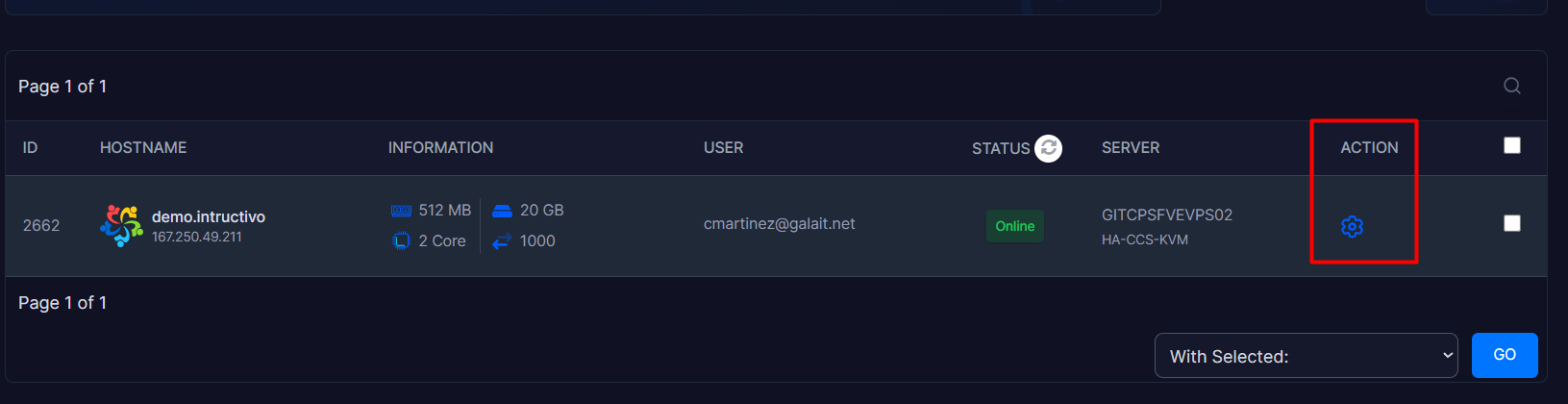
3. Locate the Install section within the displayed options menu and click on it.

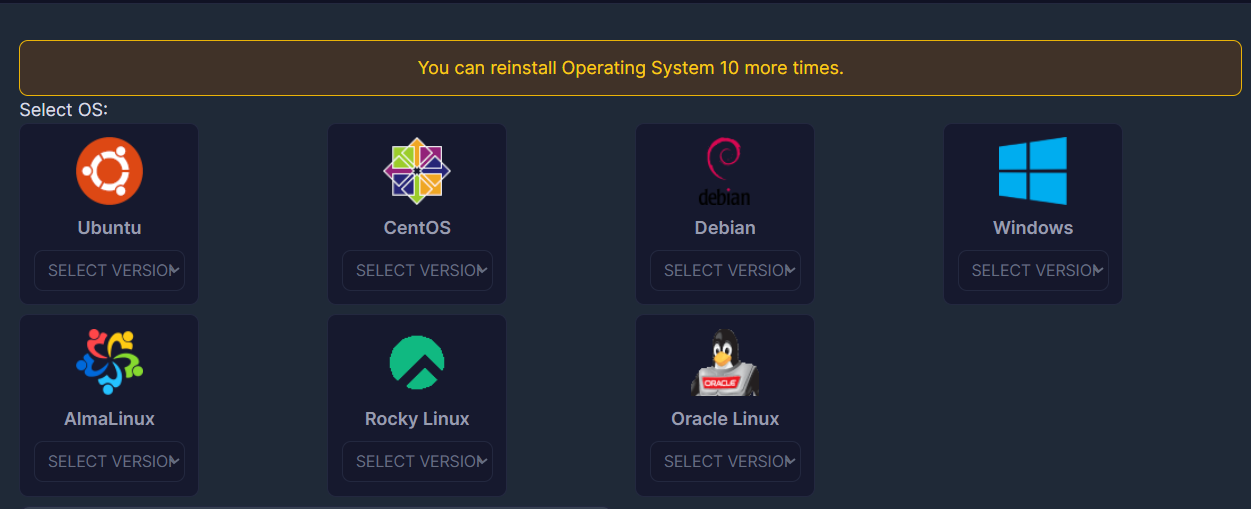
4. In the first module that appears (Reinstall OS), you can reinstall your current Operating System or load a new distribution by following these steps:
4.1. Choose your preferred distribution: In the "Select OS" section, click on the system logo and choose the specific version your project requires. We offer the most popular options on the market (Ubuntu, CentOS, Debian, etc.).
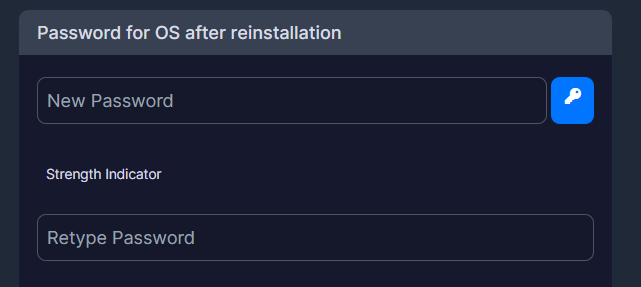
4.2. Set your access credentials: Locate the field labeled "Password for OS after reinstallation" and enter your new password. We highly recommend clicking the blue key icon to automatically generate a high-security password.
5. Manage advanced options: Before finalizing the process, you can configure advanced options. We strongly recommend selecting only those applicable or required for your specific VPS configuration:
5.1. Format Primary Disk Only: If you have secondary disks or additional data storage partitions attached to your VPS, enable this toggle to protect them. Leaving this option disabled could result in the complete and permanent deletion of all storage units linked to the server, not just the one where the operating system resides.
5.2. Remove old SSH Keys: We advise enabling this option as a preventive measure when performing a clean installation. Leaving old keys exposed may allow previous users or credentials that should no longer have access to continue connecting remotely to the server after the reinstallation.
5.3.Select SSH Keys: You can strengthen your security even further against traditional password vulnerabilities (such as brute-force attacks) by using this dropdown menu to pre-load your authorized public SSH key.
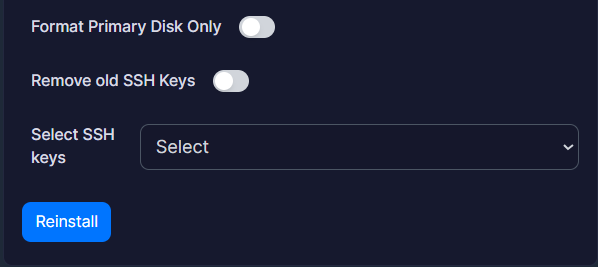
6. Confirm the action by clicking the installation button at the bottom of the form. The automated system will handle the formatting and deployment immediately.
Security Notes:
• This action will irreversibly delete all current information and configurations from your disk. Please ensure you perform an external backup before proceeding.