1. Log into your control panel with your corresponding credentials.
2. Go to the profile icon located in the upper right corner, select it to display the menu, and choose the option 'My Profile'.

3. Once inside, you can select the module you wish to modify, whether to update your account access credentials or your profile details.
3.1. Updating Personal Information (Profile): The Personal Information form allows you to keep your identity, location, and administrative contact details up to date to ensure proper account management, and it consists of 3 modules:
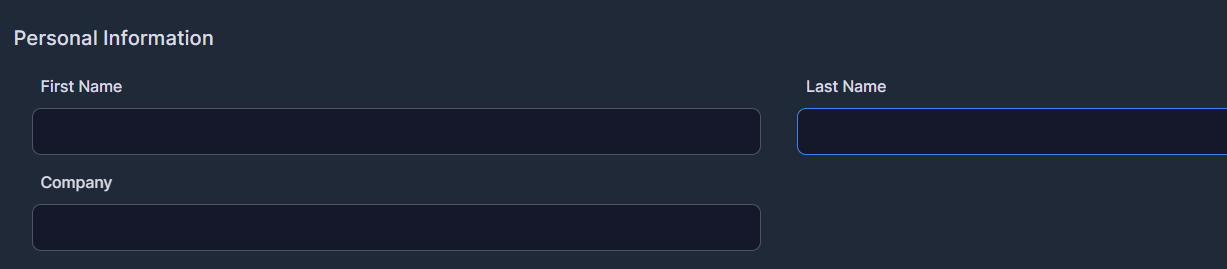
• Personal Information:
• First Name: Enter your first name.
• Last Name: Enter your full last name.
• Company: Enter the name of your company or organization (optional).
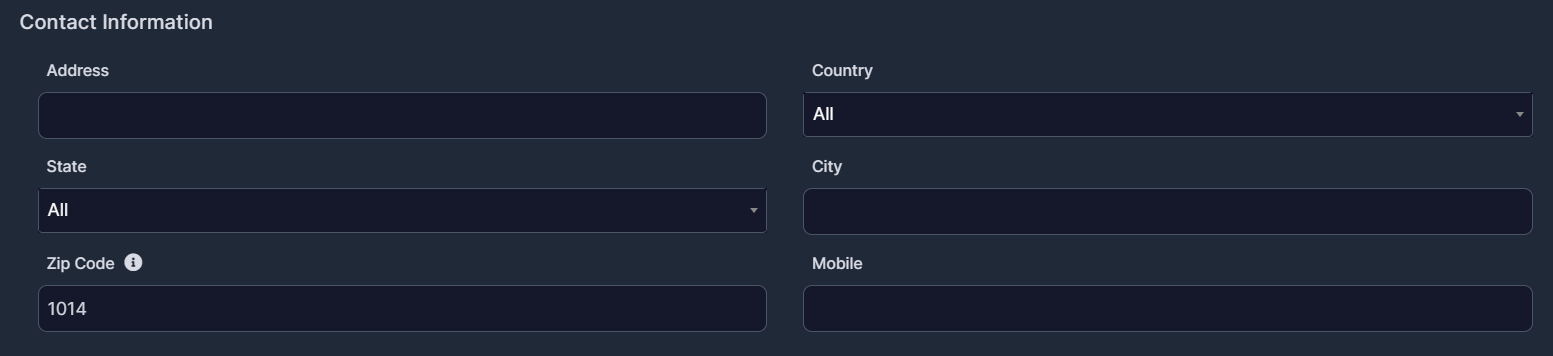
• Contact Information:
• Address: Register your current fiscal or home address.
• Country / State / City: Select your geographical location from the dropdown menus.
• Zip Code: Enter your local postal code.
• Mobile: Add your cell phone number including the area code.
• Administrative Contacts:
• System Admin Email: Define the primary email address for the system administrator.
• Invoice CC Email: Add an additional email address to receive copies of your invoices.

3.2. Changing the Access Password (Account Password): The Account Password module allows you to quickly renew your login password to guarantee maximum security in the administration of your services:
• Generate or Enter the New Password:
• New Password: Type the new password you want to assign to your account.
Tip: You can click the blue button with the key icon to the right of the field to automatically generate a strong, random password.
• Verify Security and Confirm:
• Strength Indicator: Observe the security indicator bar to ensure your password meets the recommended standards.
• Retype New Password: Type exactly the same password again to verify there are no typing errors.
• To apply the changes: Once both fields are completed identically, click the blue Change Password button located in the lower left corner.