To restore a backup in cPanel and ensure your website returns to normal quickly and securely, follow these structured steps:
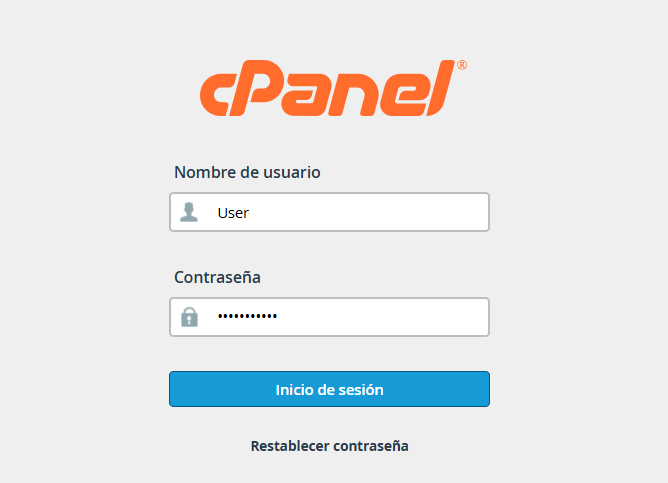
1. Log in to your cPanel account using your credentials. Once inside, locate the section titled Files.
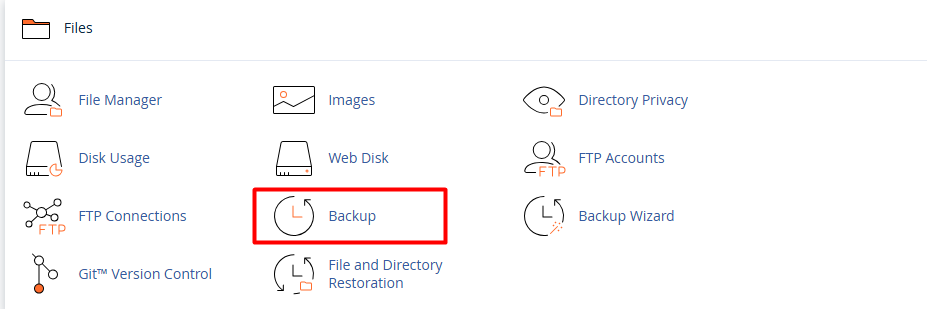
2. Click on the Backup icon. Here, you will find the necessary options to manage your files and databases.
3. If you need to recover your web folders and files go to the section Restore a Home Directory Backup.

3.1. Click Choose File and select the backup (in .tar.gz format) stored on your computer.
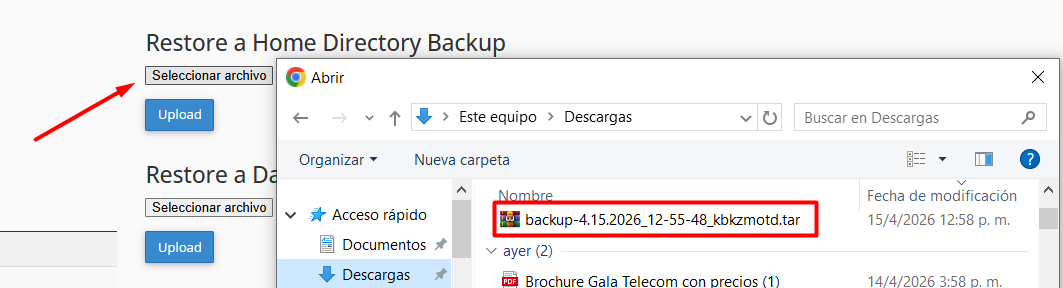
3.2. Click the Upload button, and the system will automatically process the restoration.
4. Restore MySQL Databases.
If your site uses databases (such as WordPress):
4.1. Go to Restore a MySQL Database Backup.

4.2. Select the corresponding file (usually in .sql or .sql.gz format).
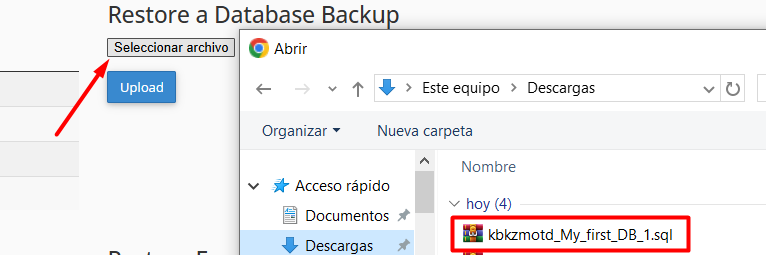
Click Upload. Once finished, a confirmation message will appear indicating that the tables have been successfully imported.
Note: After completing the previous steps, we recommend clearing your browser cache and checking your website to confirm that everything is functioning correctly.