Creating a website today no longer requires you to be a coding expert or spend hours struggling with design. With the integration of Sitejet Builder into your cPanel, you can take your first steps to innovate your brand in the digital world. Here are the steps to do it easily.
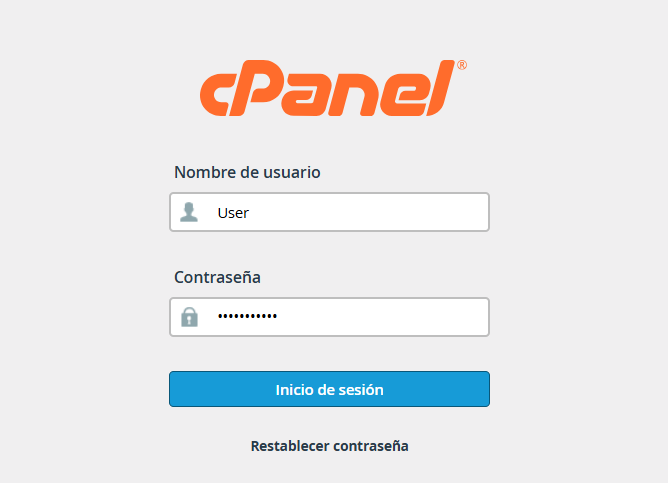
1. Log in to your cPanel with the corresponding credentials.
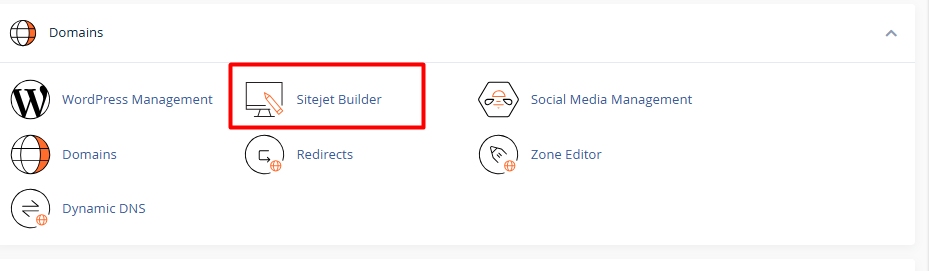
2. Locate the Domains section and select the Sitejet Builder icon in the Domains section.
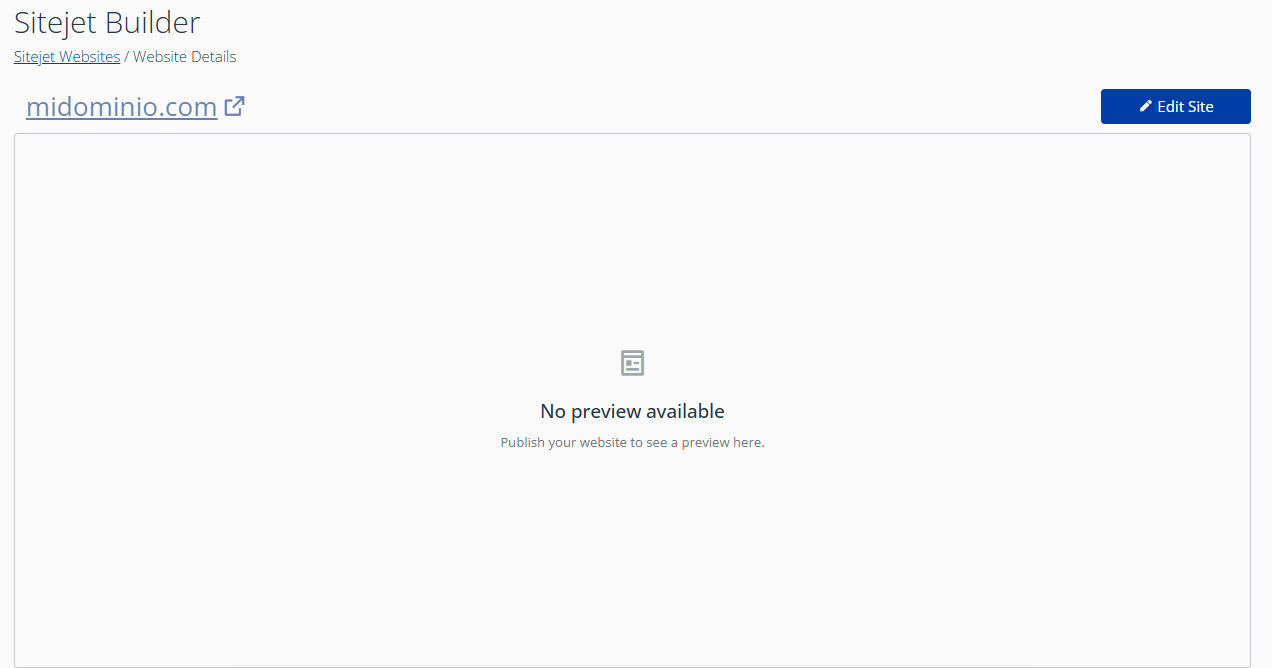
3. Depending on the number of domains you manage on your hosting, you will see one of these two options:
3.1. If you only have one domain: You will directly see the "Edit site" button. (Note: The first time you click it, the AI wizard will pop up).
3.2. If you have multiple domains: Locate the domain you want to use in the list and click on "Create a New Site".
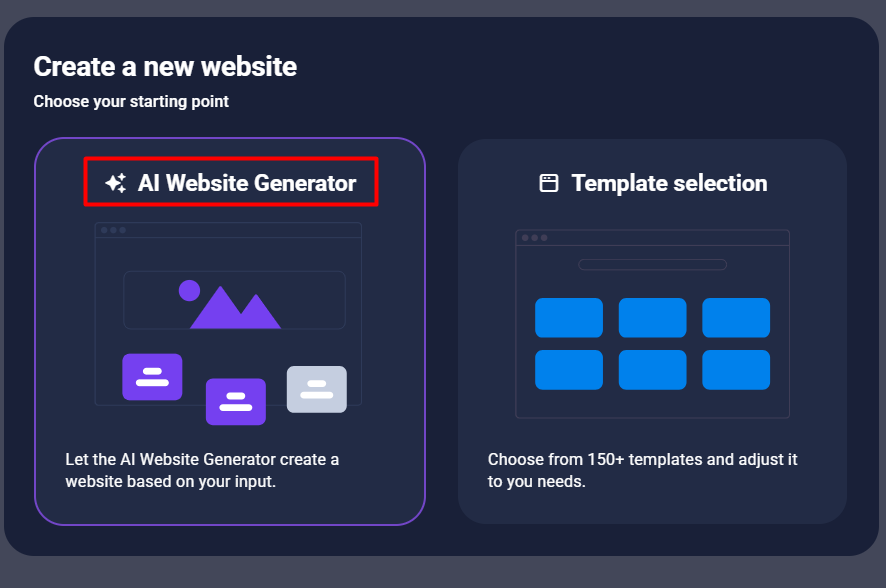
4. The system will ask you how you want to get started. Select the "AI Website Generator" option to activate automation.
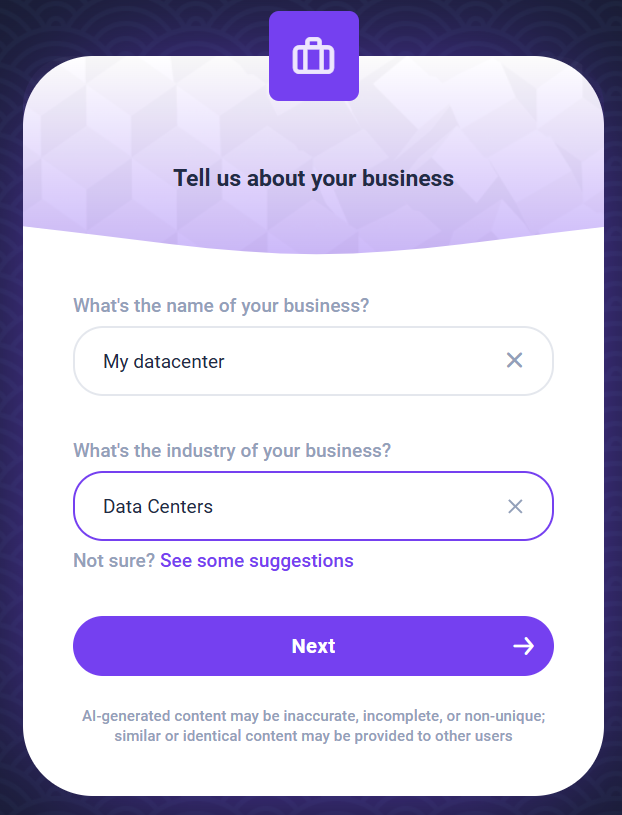
5. Setting up our AI prompt. This is where you feed the AI the essence of your project. Complete the following fields:
5.1. Describe your business: Briefly explain what you do.
Technical example: "I offer high-availability data center and hosting services."
Business example: "Logistics consulting for e-commerce companies".
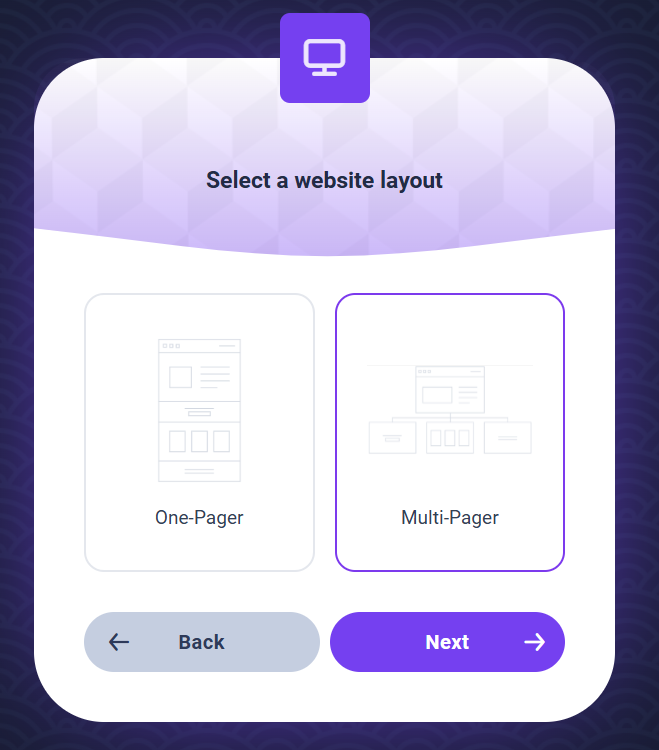
5.2. Select the design:
One-page: Everything in one section (ideal for quick landings or launches).
Multi-Pager: Several navigable sections (Home, About Us, Services, etc.).
5.3. Add details: Indicate your brand name, main services, contact information and, very importantly, the language in which you want the texts to be written.

6. Click "Generate". The AI will process the information, select images relevant to your niche, and write the structure.