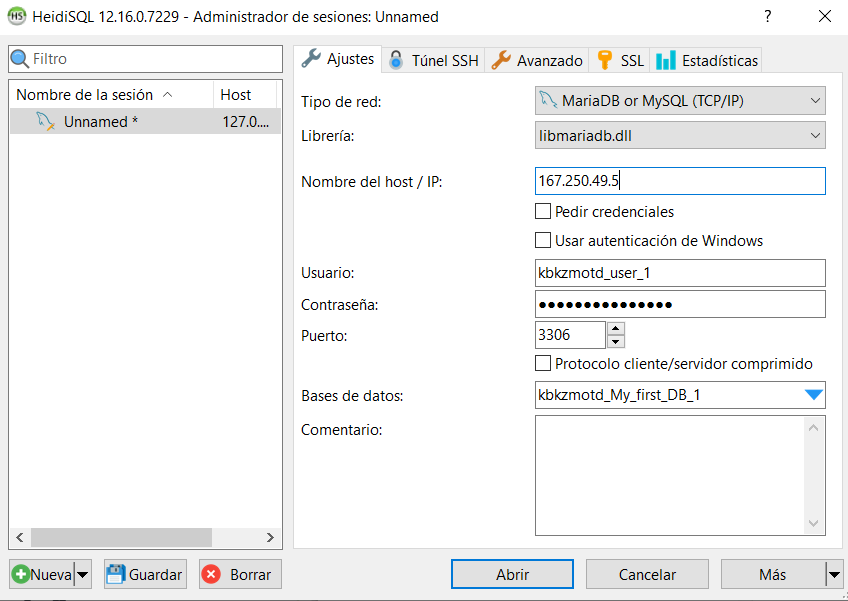
Enabling remote access allows you to manage your databases using external tools like MySQL Workbench, HeidiSQL, or from applications hosted on other servers. To ensure a successful and secure connection, follow these steps:
- Authorize your connection (Remote MySQL): For security reasons, hosting servers block all external connections by default. You must "open the door" for your specific IP address:
1. Log in to your cPanel account.
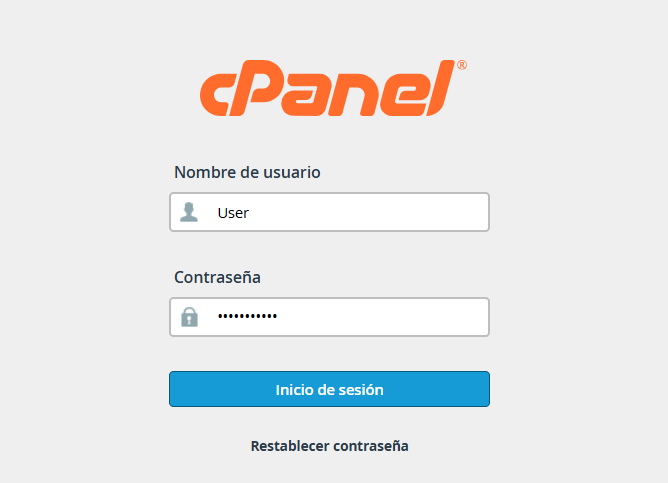
1.2. Locate the Databases section and select the Remote MySQL tool.

1.3. In the Host field, enter the public IP address of the connection you will be using to access the server.
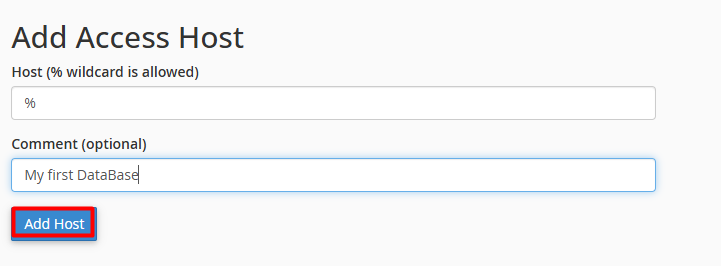
Click Add Host.
Server / Host: Your domain name ( yourdomain.com) or your server's IP address.
Port: The default port is 3306.
Username: The user you created and assigned to the database in cPanel.
Password: The password linked to that specific user.
Database: The exact name of the database (including your cPanel username prefix).
Enter your access details into the corresponding fields, ensuring each parameter matches your server configuration. Once the form is complete, click the "Open" button.